WIRELESS ACCESS POINT LOGIN PAGE
You have arrived at this page, mostly likely because you are currently not connected to your NETGEAR Business WiFi products. To access aplogin.com, aplogin.net, routerlogin.com or routerlogin.net, your device must be connected to your Router or Access Point’s WiFi network.
If you are using NETGEAR Home products, please click here
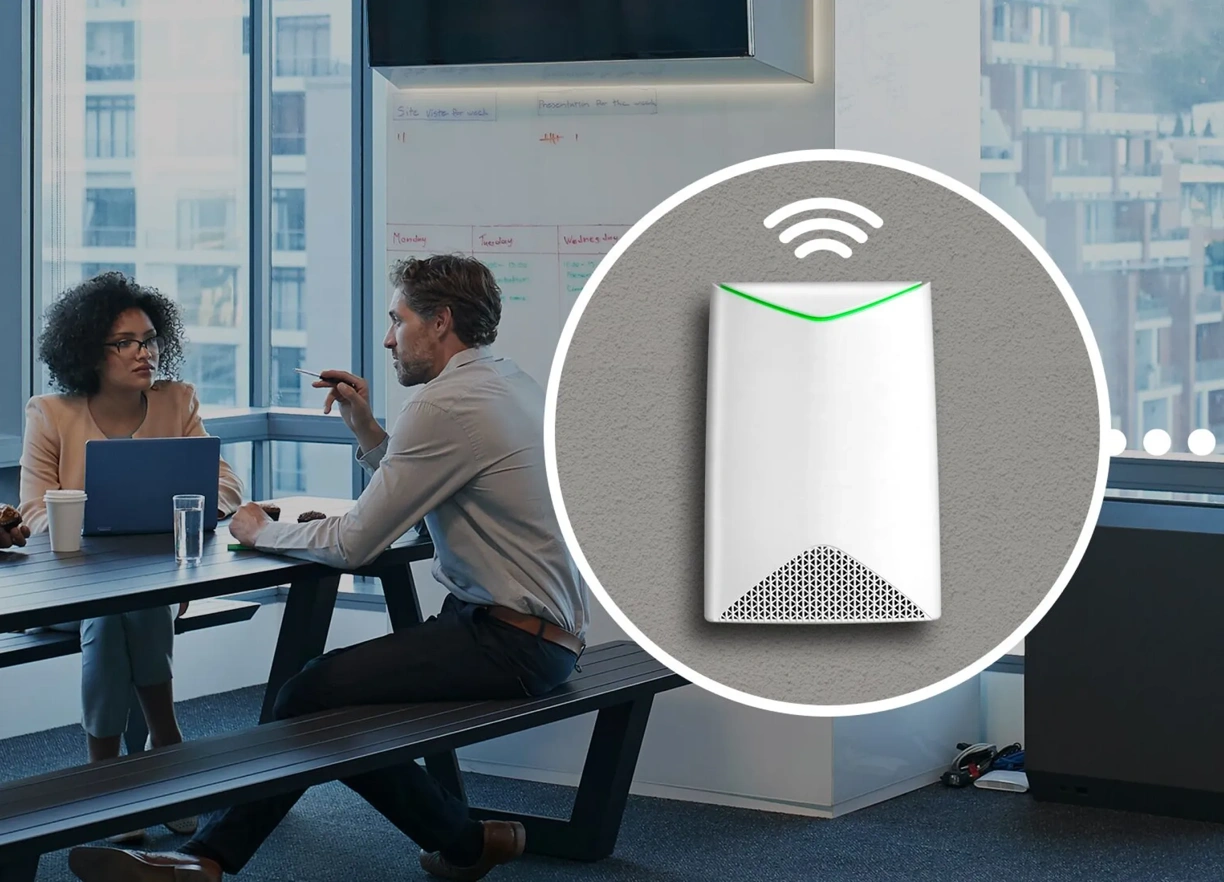
Insight Managed Access Points and Orbi Pro
The easiest way to connect and manage your Insight Managed router/access point or Orbi Pro is through the Insight cloud portal and app.
To download the app, visit
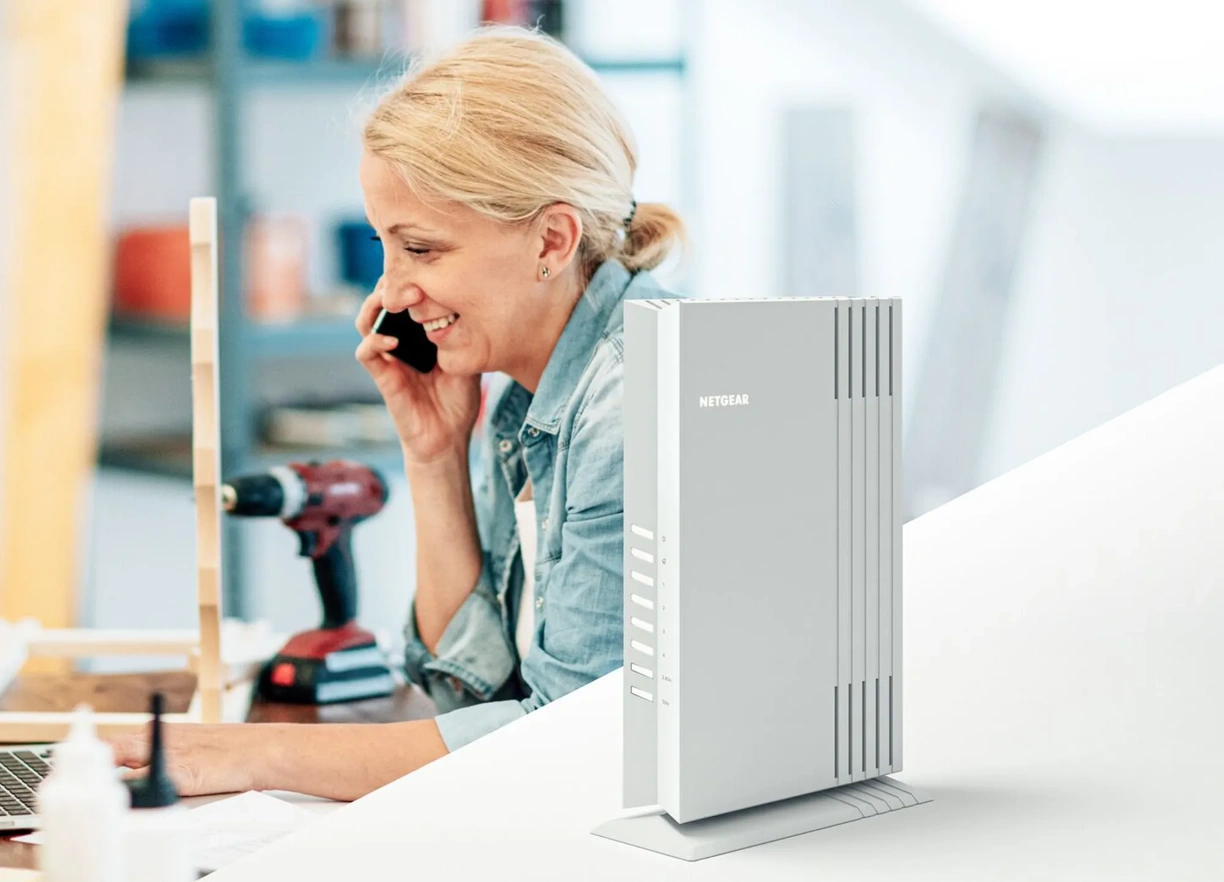
Essentials Access Points
The easiest way to connect your locally managed router/access point and view settings and wireless network is through the local UI.
If you are having trouble connecting to your WiFi network, check your current connection, try the below options and try to connect again.
- Make sure you are connected to the correct WiFi network name (SSID). Find the correct SSID printed on the access point's label and connect to that network. For WAX214 or WAX218 SSID, you should be connected to CONFIG_ONLY_SSID.
- If you are using a VPN connection or a customized IP range, find the IP address of unit and type https://<ipaddress>. The default IP address of Orbi Pro or WAX series working as router is 192.168.1.1
- Some browsers may have cached this page by accident. You can follow instructions below for some popular browsers to clear the cache and try again:
Internet Explorer (IE):
- For Internet Explorer, click on Tools > Internet options and select Delete browsing history.
- Make sure all options are checked and then click Delete.
Google Chrome:
- For Chrome, go to the browser toolbar, click More Tools and select Clear Browsing Data.
- Select the “beginning of time” option and then click Clear Browsing Data.
(For other browsers, please refer to user manual for your browser)