First, Why Owning Your Router is the Smartest Network Upgrade
Many people are surprised to find that they aren’t stuck with the WiFi router provided by their internet service provider (ISP). The fact is that owning your router is a smart network upgrade that can reward you with stronger internet connection, better performance, more control, and long-term savings.
Stop Paying monthly ISP Rental Fees and Start Saving
ISPs typically charge a monthly rental fee for their basic equipment, most of which isn’t optimal for best performance in today’s busy online world. Buying your own router involves a higher upfront cost, but you will save money in the long run. In fact, a future-proofed NETGEAR WiFi 7 router or whole-home mesh system will continue to save you money for its entire lifespan.
Unlock Faster Speeds, Better Coverage, and Advanced Features
Along with cost savings, there are loads of other advantages to owning a latest-standard router, including:
- Better Performance: Stronger signals, faster speeds, and better handling of multiple connected devices wirelessly or via wired connections compared to the standard ISP models.
- Full Control: Customize settings your way with parental controls, guest networks, QoS (Quality of Service), and system updates.
- Stronger Security: Stay on top of router firmware updates and strengthen your smart home protection with state-of-the-art firewalls and VPN support.
- Future-Proofing: Choose a router that supports the latest WiFi 7 standard and stay one step ahead of the newest tech releases now and in the future.
The 5-Minute Nighthawk Setup: How to install a Router with the Nighthawk App
NETGEAR makes first-time home WiFi new router setup stress-free by providing an app-based process that is easy to follow in a few simple steps.
- Step 1: Download the Nighthawk App & Unpack Your Router.
- Step 2: Connect your router to the modem and power source.
- Step 3: Follow the App’s Simple On-Screen Instructions.
- Step 4: Personalize Your WiFi Network (SSID & Password).
Once set up, you can use the app to adjust router settings, monitor device performance, run speed tests, troubleshoot, and more.
Fine-Tuning: Accessing Your Router's Admin Settings
You can access your NETGEAR router’s admin settings in two main ways—via the Nighthawk App or through your web browser. If you choose to use the web-based login system instead of the app, learn more about the NETGEAR Router Login page experience or read-on below:
Logging in Through Your Browser via routerlogin.net
- Connect your router to your modem via an Ethernet port.
- Open a browser and go to routerlogin.net or type
http://192.168.1.1 into the address bar.
- When prompted, enter your unique username and password. The default username is usually admin, and the default password is password.
- Once logged in, you’ll see the admin dashboard where you can adjust settings like WiFi name, password, firmware updates, and parental controls.
A Must-Do Tweak: Setting Up a Secure Guest Network
Guest networks are home network must-haves for smart homes. Visitors expect internet access, and guest networks are your key to security, privacy, and a smooth-running network.
Guest Network Setup Using the Nighthawk App:
- Power on your device and open the Nighthawk app on your phone.
- Tap on Guest WiFi.
- Choose a WiFi band (2.4GHz or 5GHz).
- Toggle Guest WiFi Enabled to ON.
- Set a network name (SSID) and password. (Using your existing UN/PW will allow devices to reconnect automatically.)
Optionally, share access via a QR code. You may be asked to reboot the device to complete the setup.
Unleash the Power: Key Nighthawk Features & Security Tips
NETGEAR Nighthawk WiFi 7 Routers are packed with powerful features designed for speed, control, and security. Here’s a quick rundown of what makes the top line Nighthawk RS700S Router stand out, along with security tips to keep your network safe.
Nighthawk RS700S Key Features
- WiFi 7 Technology: Delivers blazing-fast speeds up to 19 Gbps, wirelessly and via Ethernet cable, with support for 320MHz channels, 4K QAM, and 2.4x faster performance than WiFi 6.
- Tri-Band Connectivity: Optimized for handling multiple high-bandwidth devices simultaneously — ideal for 4K/8K streaming, gaming, and AR/VR.
- 10 Gigabit Internet Port: Future-proofed support for the fastest available fiber and cable plans.
- Advanced Antenna Design: Offers up to 325 square meters of 360-degree coverage for optimal wireless router broadband coverage.
- Multiple Wired Options: Includes one 10G LAN and four 1G LAN ports, plus a USB 3.0 port for network storage or media sharing.
- Robust Security: Comes with NETGEAR Armor security powered by Bitdefender and Smart Parental Controls for managing screen time and content.
Security Tips to Keep Your Network Safe
- Change Default Credentials during setup.
- Enable WPA3 Encryption.
- Keep Firmware Updated with automatic updates.
- Use Strong WiFi Passwords.
- Segment smart home IoT Devices in a separate network.
A Critical Step: Activate NETGEAR Armor for Total Network Security
NETGEAR Armor provides a powerful suite of security tools to help keep you safe online. Built into your NETGEAR WiFi system, Armor automatically helps protect devices connected to your home network and can be easily activated via the Orbi App or Nighthawk app.
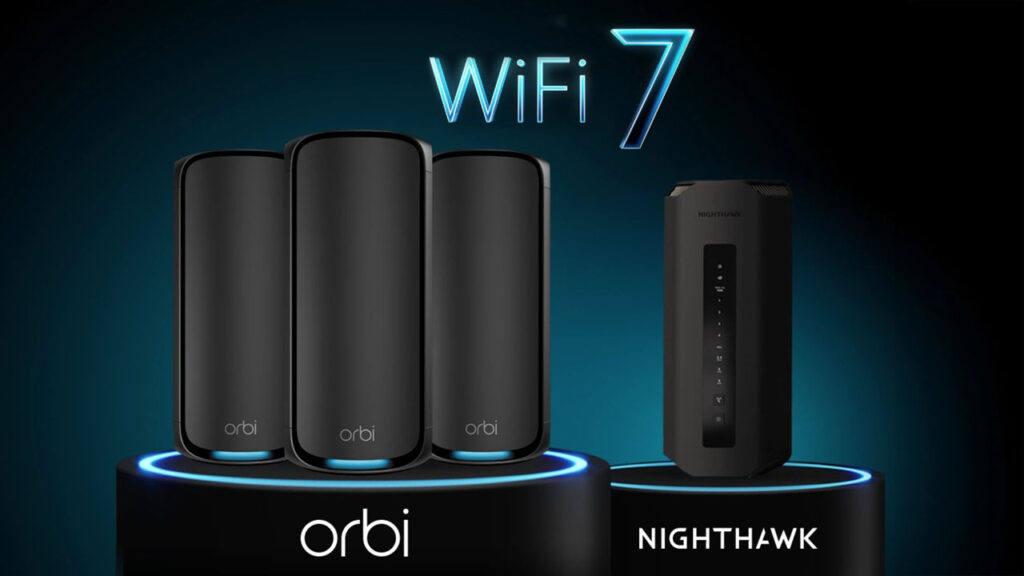
Router vs. Mesh: Is a Nighthawk Router Right for You?
As an original WiFi innovator since the 1990s, NETGEAR is uniquely positioned to understand customer needs with engineering and technology excellence. NETGEAR Nighthawk Routers and Orbi Mesh Systems lead the way, but what’s the difference between a Nighthawk router and an Orbi mesh system?
Nighthawk Routers: Ideal for Raw Speed and Performance
The amazing Nighthawk Router range has a product for every price point. These powerful WiFi 7 routers are perfect for apartments and small/medium sized homes.
Orbi Mesh: The Best Alternative for Large or Complex Homes
Orbi Mesh Systems include the main router with superfast LAN and WAN ports + multiple router satellite access points. The result — seamless connectivity in large or complex homes, no dead zones, and WiFi 7 functionality.
With your new NETGEAR Router or Orbi Mesh System installed, you’ve just unlocked a world of effortless speed, seamless streaming, and powerful control.
Frequently Asked Questions (FAQs)
What should I do if my Internet Service Provider gave me a modem/router combo unit?
This will depend on the quality and capability of the unit. ISPs often provide basic products that don’t meet modern home network demands. It could be worth upgrading with a new modem, router, or modem/router combo.
Where is the best physical location to place my new router?
The best practice to deliver a stronger WiFi signal for your wireless network is to place your router in a central location a few feet off the ground, such as on a cabinet, desk, or table.
What's the default username and password for my NETGEAR router?
Generally a NETGEAR router default username is “admin”, and the default password is “password”. If the default doesn’t work check for a sticker with a semi-unique username and password can also be found on the router in the box. Make sure to use a unique username and password during the setup process.
How do I know which devices to connect to the 2.4GHz vs. 5GHz (or 6GHz) bands?
NETGEAR uses Dynamic Host Configuration Protocol (DHCP) that automates the assignment of IP addresses and other network parameters to devices on your network.
2.4GHz is slower, but it reaches farther and handles obstacles like walls better. Perfect for smart home devices such as baby monitors and printers.
5GHz delivers faster speeds but a shorter range. Ideal for streaming on your TV, video calls on your laptop, or gaming on your console.
6GHz Only available if you have a WiFi 6E or WiFi 7 router. It offers even more speed and less interference in close range and is perfect for cutting-edge smartphones, VR headsets, or ultra-fast downloads.
How can I check if the router configuration and installation was successful?
Most NETGEAR routers have LED lights on the front panel. A solid white or green power LED and internet LED usually indicate a successful connection.
Can I use my old router as a range extender?
Yes, you can use an old router as a range extender, but this may lead to slower speeds and inconsistent performance. For optimal results, consider the Orbi Series Mesh WiFi 7 System, designed to deliver seamless coverage and high-speed connectivity throughout your home.
Can I Connect a new router to a Xfinity/Spectrum/AT&T modem?
Yes, you can connect a NETGEAR router to modems from Xfinity, Spectrum, AT&T, and other major providers.
Congratulations! You’ve successfully installed your NETGEAR Nighthawk router and taken the first step towards a faster, safer, and more reliable home network. You’re now ready for lag-free gaming, seamless 4K/8K streaming, and rock-solid connectivity for all your smart home devices.
Important: Your NETGEAR Router setup isn’t complete without security. Protect every device on your new network by activating your included trial of NETGEAR Armor in the Nighthawk app.