What Students Actually Need From Home Internet This Year
The best WiFi setup for students at home needs four things:
- Coverage where they study
- Enough speed for live classes
- Basic online safety
- Backup internet connection
Most homes were never set up with school in mind. The router sits wherever the installer left it, and nobody has tested the signal in the bedroom. The rest of this guide covers each one.
Save big on award-winning WiFi with Back to School deals!
Know Your Setup: What Your Child Will Use Online
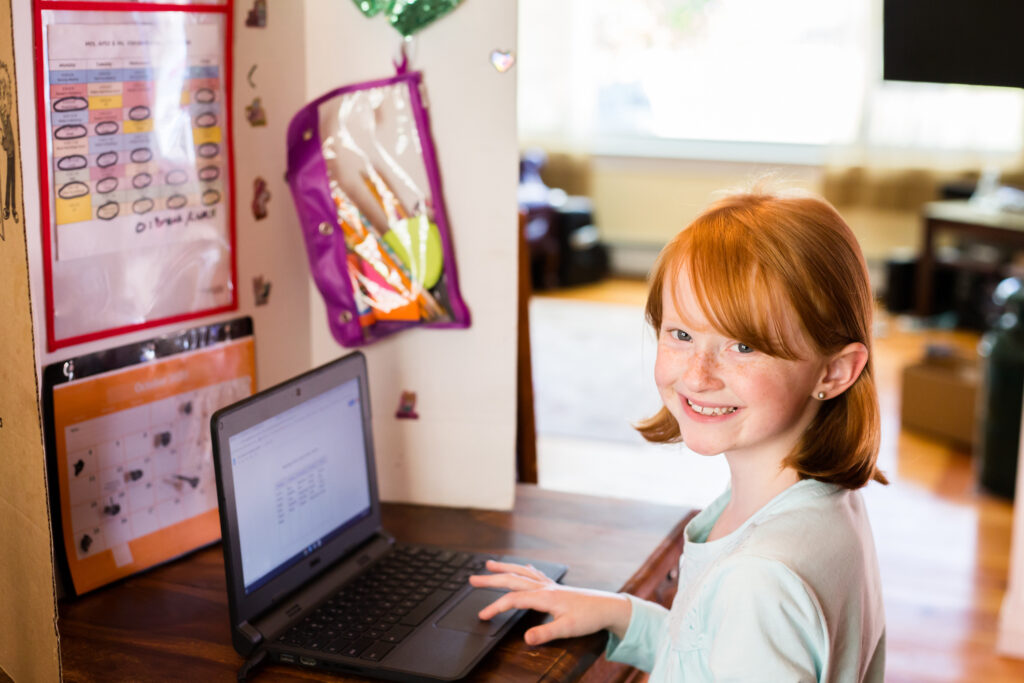
List what your child needs to reach online, then check if your home can handle it. Most K-12 students use a small set of tools, each asking something different of your home network.
What your student uses online
| Resource type | Common examples | What it needs from your network |
| School platforms | Assignment portals, grades, teacher updates | A stable connection and current browser |
| Live online classes | Video calls, tutoring, group projects | Consistent upload speed and low latency |
| Homework resources | Articles, educational videos, digital textbooks | Enough bandwidth for pages and videos to load without delays |
| School devices | Chromebook, laptop, or tablet | Strong WiFi in the study space |
| Communication | School email and messaging apps | Reliable access throughout the day |
Check that each device connects, charges, and opens the required school portals. Bookmark key pages and install updates before classes begin.
How Much Speed and How Reliable Does It Need to Be?
A single student doing schoolwork needs less speed than most parents expect. Pressure comes from everyone else in the house using the connection at once.
The FCC defines high-speed internet as 100 Mbps download and 20 Mbps upload. Treat that as the floor rather than a target for a busy household.
| Household | Activity at once | Plan guidance |
| One student, quiet house | A class, homework, some streaming | Around 100 to 200 Mbps |
| Family of four | A class, a work call, streaming, a console | Roughly 300 to 500 Mbps |
| Several kids at once | Two classes, two screens, gaming | 500 Mbps to 1 Gbps, fiber internet if available |
These ranges are planning guides. Actual results depend on your WiFi equipment, your
modem, and what Internet service providers (ISPs) deliver at peak hours.
Bandwidth is the amount of data your connection can carry at one time. Latency is the delay between your device and an online service. Low and steady latency helps conversations during live classes feel natural.
Use the FCC National Broadband Map to compare ISPs at your address. It lists the ISPs that report service, the connection type, and the maximum advertised upload and download speeds available at a location.
A fiber service may suit a household that runs several video calls or uploads large files. Fiber internet often offers stronger upload capacity, but availability depends on your address.
Some plans advertise ‘unlimited’ data but throttle speeds once you exceed a monthly threshold. Confirm whether high-speed data is truly uncapped — or just capped at a level that sounds unlimited until a heavy-use month hits.
Consider Having a Backup Plan Before You Need One
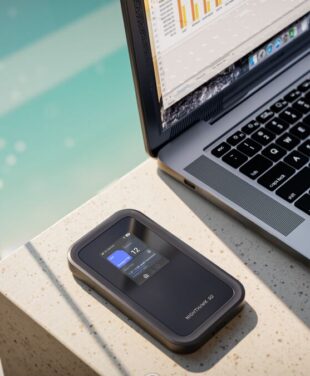
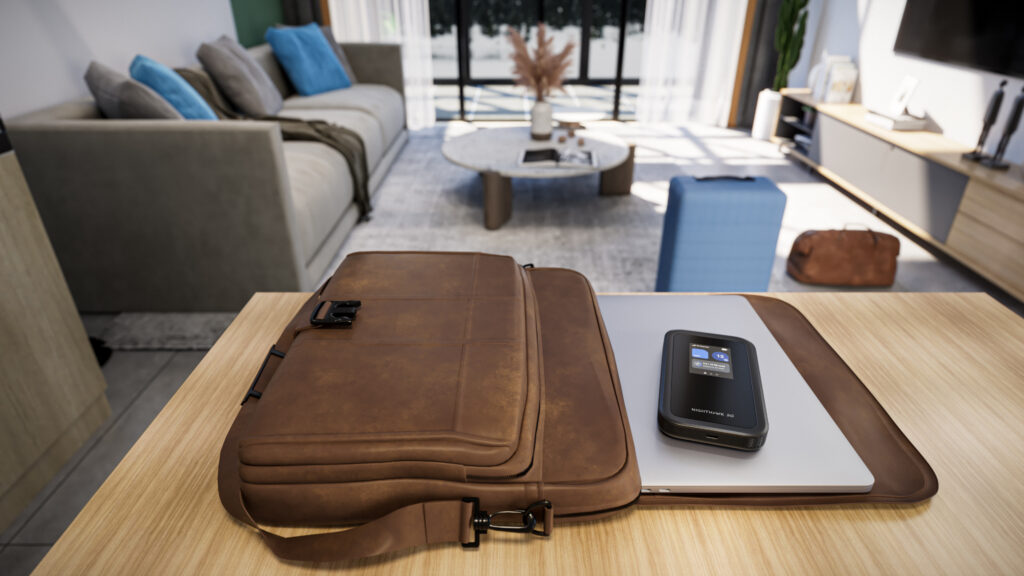
Outages do not check the school calendar. A mobile hotspot or phone tethering can keep schoolwork moving during an outage. Test the connection before you need it, check the data allowance, and confirm how much data the plan includes. Many plans include unlimited data, but the speed may drastically reduce once the high-speed data allowance runs out.
Older students hit the same problem for different reasons. Campus and rental WiFi is shared and outside their control, and most ISPs will not run a new line into a dorm. A hotspot gives them a private connection that moves with them at the end of the lease.
Shop NETGEAR Mobile Hotspots
Getting WiFi to Every Study Space
Reliable schoolwork needs a strong signal in the exact room where your child studies, not just near the router.
Distance, thick walls, metal, and multiple floors can weaken a signal. Moving a router into an open, central position may help. However, one router may still leave dead zones in a larger home. A “dead zone” refers to the spot or space where the WiFi barely reaches, like the basement and back bedroom.
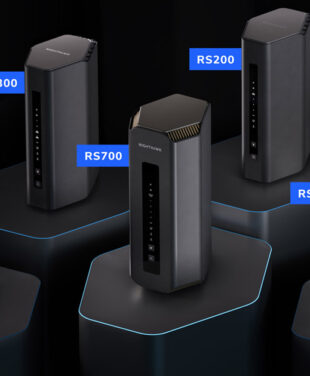
Mesh WiFi fixes that. A mesh system, like the NETGEAR Orbi series, uses a main unit plus satellites placed around the house, forming one network under a single name. Devices connect to whichever unit is closest. This extends the coverage beyond the room containing your modem, so your child can connect in the study space they use each day.
Our guides on what mesh WiFi is and how to fix WiFi dead zones can help you assess the weak areas in your home.
Shop Orbi Mesh Systems
Keeping Them Safe Online Without Hovering
The most durable online safety sits at the network level, because it protects every device your child uses without installing anything on each one.
Start with a strong WiFi password, automatic router updates, and current software on school devices. Set parental controls that match your child’s age and explain why each rule exists.
For NETGEAR routers and mesh systems, you can also add NETGEAR Armor, a network security system powered by Bitdefender. It helps block malware, ransomware, phishing, and harmful sites at the network level. It also scans for risks such as weak passwords, old firmware, and unsafe device settings.
Be realistic, though. No security product catches everything, and none replaces a conversation about what to do when something online feels wrong.
Using AI As a Learning Aid, Not a Cheat Engine
Once the network is secure, the question shifts from how they connect to how they learn. AI tools are now a standard part of the homework experience — used well, they reinforce understanding; used poorly, they replace it.
AI can help a student understand a topic, but it should not do the thinking or final work for them.
A student might ask AI to explain a math method, define unfamiliar vocabulary, or create practice questions. But they should still check every claim against class materials and reputable sources. If you’re helping a child with homework and you find yourself a bit rusty on a topic, AI tools can quickly get you up to speed so you’re ready with the assist.
Many schools and districts encourage responsible AI use and expect parents to be part of the conversation — check your school’s current policy for what is and is not permitted.
Learn About NETGEAR Armor

Growing Independence: Adjusting the Setup as They Grow
Your role changes as your child does, and the network should change with them. A seven-year-old benefits from tight filtering and a device that stays in the living room. A fifteen-year-old on a research project needs fewer blocks and more trust, plus an understanding of why the rules exist.
Loosen controls deliberately rather than all at once. Review device placement, access rules, and security settings at the start of each school year. Then give your child more control as they show sound judgment.
Your Pre-First-Day of School Home-Network Checklist
- 1) Run a speed test at the busiest time of day, not first thing in the morning.
- 2) Test the signal sitting in the exact spot your child will study.
- 3) Set any parental controls and filtering before the term starts.
- 4) Confirm a backup way to get online and check the device charges.
- 5) Bookmark the school portals and install the required apps.
Getting this right takes an afternoon. Start with the speed test and the signal check in your child’s room, because those two results tell you if anything else needs to change.
Frequently Asked Questions
How much WiFi speed does a student need at home?
A live online class uses around 3 to 5 Mbps on its own. Budget 25 Mbps or more for a student running a video call, loading homework resources, and streaming at the same time — and more if others in the home are online too.
How can I get WiFi to reach my child's bedroom, or all the way down to the basement?
Test the signal in that room and place the router in a central, open position. A mesh system can extend one network into rooms that a single router cannot reach well.
How do I keep my kids safe online without blocking everything?
Use network security, current software, and age-appropriate rules. Talk about unsafe links, private information, and source checking so your child understands each boundary.
What is a good internet backup plan for the school year?
A mobile hotspot is the simplest option, since it runs on a cellular network and works during a home outage. Phone tethering can also cover short gaps, and public libraries are an option for longer ones.
Is it OK for students to use AI for homework?
Yes for understanding a topic, no for producing work they submit as their own. Check your school's policy first, because rules differ by district and by teacher. Do not use it to produce work a student plans to submit as their own.
What do I need to set up home internet for online school?
You need a suitable service plan, a modem, a router or mesh system, strong coverage in the study area, basic network security, and a tested backup connection.
Is there federal help with the cost of home internet?
The Lifeline program still runs and takes up to $9.25 a month off a phone or internet bill. Households qualify through Medicaid, Supplemental Security Income, the Supplemental Nutrition Assistance Program (SNAP), Federal Public Housing Assistance, or income at or below 135% of the federal poverty guidelines. Some ISPs also offer low-cost plans under the National School Lunch Program, including schools covered by the Community Eligibility Provision. Check each provider’s current speed, equipment, contract, and installation terms before applying.