The Common Problem: Your Router's Ports are Full
Modern American smart homes contain dozens of connected devices all vying for internet access. Many of these devices function just fine wirelessly, while others, such as data-hungry gaming consoles, perform better at peak capacity with a dedicated Ethernet connection (or simply don’t have WiFi). Most routers come with several Ethernet ports for routing connections, but how to expand a wired home network if all ports are in use? It’s a problem that’s becoming more common, but NETGEAR has the answers.
Why You Need More Wired Connections (Gaming, Streaming, PCs, Smart TVs)
WiFi has come a long way, but Ethernet still rules for local area network devices and activities where uncompromised performance is important. These include:
- Gaming Consoles: Lag and latency can turn winners into losers. PlayStation, Xbox, and gaming PCs perform better on Ethernet.
- Smart TVs and Streaming Devices: Ethernet helps avoid buffering when streaming 4K/8K high-definition content on smart TVs, Apple TV, Roku, or Nvidia Shield.
- Desktop Computers: If you’re video editing, creating music, or working with large files, high-speed Ethernet is the solution.
- Network-Attached Storage (NAS): These large storage systems require fast, stable connections to transfer data quickly.
- VoIP Phones & Conference Hardware: Presentation of professional-grade communication without dropped calls or choppy audio makes Ethernet essential.
- Wired Security Cameras: Many types of wired home and office security cameras rely on Ethernet for connections, or are in some cases powered by Ethernet through a PoE Switch.
But Why Ethernet?… How Fast Is Gigabit Ethernet vs. WiFi 7?
WiFi 7 is faster, smoother and more convenient than ever, but wireless signals still have to battle interference and competing devices. A wired Ethernet link avoids that chaos, delivering the most stable, low-latency connection possible. While WiFi can add 5–10 ms of delay and occasional jitter, Ethernet keeps your connection rock-solid and predictable. Plugging in devices also “frees the airwaves” for devices that are WiFi exclusive, such as tablets.
Debunking the Myth: Why "Ethernet Splitters" Aren't the Answer
Ethernet splitters are touted as a low-cost solution to increase connections, but they come with major drawbacks. Splitters physically separate the signal with wires, with no data processing, although two signals have their performance capabilities potentially halved. Furthermore, unmanaged switches with 4 ports are inexpensive (about $20) and easy to find. In fact, the terms “Ethernet splitter” or “Ethernet hub” are sometimes used incorrectly, as these specific devices are quite rare today given the very low cost of basic 1Gb unmanaged switches, which perform the same function much more effectively.
A Switch Explained: The Smart Traffic Director for Your Home Network
Now that we’ve clarified why Ethernet splitters aren’t ideal, let’s explore how switches work and why they’re the smarter choice for expanding your network. A Switch is a network device that is used to segment networks into different subnetworks (subnets or LAN segments). Switches filter and forward data packets between LAN segments based on the MAC address.
Switches have many ports. When data arrives at any port in your computer network, the switch examines the destination address and checks are done before the data is processed and transmitted. Typical switches process in <1ms adding minimal latency to connected devices. Supported communication types include unicast, multicast, and broadcast communication, but with a standard plug-and-play unmanaged switch in a home network the technical details can be largely ignored. Just click in the cable's two ends and you’re ready to go.
Router vs. Switch: Understanding Their Unique Roles
A router and a switch both direct traffic on a network, but they operate in different ways for distinct purposes.
The Router: Your Gateway to the Internet
- Connects your ISP internet connection to your home network.
- Works at the network level, meaning it understands and assigns IP addresses.
- Can assign IP addresses, provide NAT (Network Address Translation), and manage DHCP.
- Is typically slower than a switch but can handle broader traffic (LAN to internet).
- Often includes firewalls, VPN handling, and traffic filtering as a security gatekeeper.
The Switch: The Hub for Your Local Devices
- Connects devices like computers and printers within a single local network.
- Works at the device-to-device level, using MAC addresses to forward data.
- Forwards data frames between devices within a LAN based on MAC addresses.
- Much faster within a LAN because it’s focused solely on directing local traffic efficiently.
- Smarter than a basic Ethernet hub or splitter but doesn’t manage internet traffic or offer security features by default.
How to Connect a NETGEAR Switch to a Nighthawk Router: A Simple Step by Step Guide.
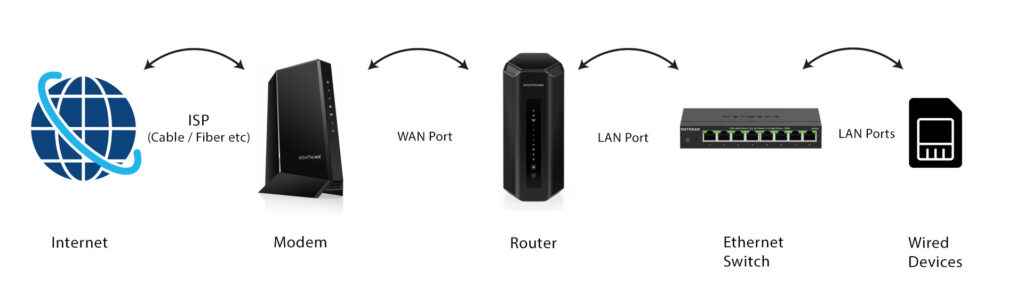
Connecting a switch to a router can efficiently expand and organize your network. Your router is like a gatekeeper, while the switch is a local hub that lets your growing number of devices talk to each other. Connecting your router to a switch is particularly useful in homes and offices with lots of wired connections. Set up takes only minutes, as follows:
- Step 1: Gather your equipment (router, switch, Ethernet cables).
- Step 2: Power up your new switch and router.
- Step 3: Connect a router LAN port and a switch port with an Ethernet cable.
- Step 4: Connect your devices and enjoy your expanded network.
Reminder: The switch should always connect to a LAN port after your Modem and Router, or it can prevent the devices from connecting correctly.
Choosing the Right NETGEAR Switch for Your Home
NETGEAR Ethernet switches come in all types for large and small enterprises and smart homes. Options range from management style, port counts, PoE capabilities, and port-speed. With all the right choices, NETGEAR switches are sure to exceed your increasing network demands.
For Simplicity: Plug-and-Play Unmanaged Switches
NETGEAR Unmanaged Switches are perfect for home users and small businesses who want hassle-free networking. Plug-and-play unmanaged switches require no configuration—just plug them in and you’re good to go. These are often the best switches for gaming / home office applications.
For Power Users: More Control with Plus Switches
NETGEAR Plus Switches are a step up from basic unmanaged switches. They’re designed for small businesses and advanced home users who want more control over their network—Perfect if you want more than plug-and-play but don’t need the full feature set of enterprise-grade switches.
For Specific Devices: When to Consider a PoE (Power over Ethernet) Switch
NETGEAR Power over Ethernet (PoE) Switches are a smart consideration in many scenarios. These include deploying IP cameras, setting up VoIP phones, and powering access points across large offices, campuses, or public spaces.
An Ethernet Switch for Any Need:
NETGEAR switches are built to meet the needs of everyone, from casual home users to large enterprises with complex networking demands. Whether you’re a gamer, a remote worker, or managing a smart home, our plug-and-play switches offer hassle-free simplicity. For businesses and advanced users, our enterprise-grade switches deliver powerful features and scalability to handle even the most demanding networks. Whatever your setup, NETGEAR has the perfect solution to keep your connections fast, reliable, and seamless.
Frequently Asked Questions (FAQs)
Will adding a switch slow down my internet speed?
No, adding a switch won’t slow down your internet speed. They can handle traffic as fast as your devices and cables allow. Internet speed is mostly determined by your ISP and router.
Do I need to install any software or configure my switch?
If you’re setting up a basic plug-and-play network with unmanaged switches, there’s no need for additional software or network hardware. If you’re working with a managed switch and you want to control settings like VLANs or security features, you may need to access the switch’s management interface via dedicated management software.
Do I plug a switch into the WAN or LAN port?
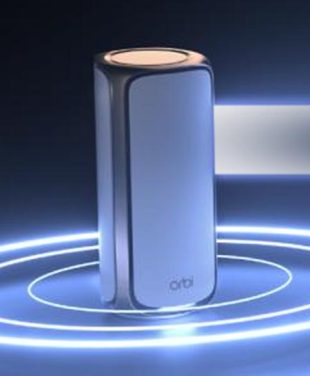
To connect your switch to your router, you’ll want to use one of the LAN ports on your router – not the WAN port or modem. NETGEAR WiFi 7 Nighthawk Routers and Orbi Mesh Systems contain multiple LAN ports and wireless access points.
Can I connect another switch to my first switch (daisy-chaining)?
Yes, you can daisy-chain network switches. Simply connect one network switch to another using an Ethernet cable. Switch cables should not form loops between ports. There is almost no practical limit to the number of daisy chained switches that can be added to a standard home network.
What's the difference between a gigabit switch and a multi-gig switch?
Gigabit switches support speeds up to 1 Gbps on each port. Multi-gig switches support speeds above 1 Gbps on compatible ports—perfect for WiFi 7 wired/wireless routers and WiFi 7-enabled devices. 2.5Gb 5Gb and 10Gb are the most common Multi-Gigabit ethernet speeds.
What is the difference between an Ethernet splitter and a switch?
An Ethernet splitter allows two devices to share a single Ethernet cable, although speed and performance is compromised. A switch connects multiple devices on a network and allows them all to communicate simultaneously, without diminished speed or performance.
What does "unmanaged" vs. "managed" switch mean for a home user?
With a managed switch, you can configure settings like VLANs, bandwidth prioritization, security rules, and traffic monitoring. An unmanaged switch is all about plug-and-play simplicity with no configuration required.
Expanding your wired network doesn’t have to be complicated. With a simple plug-and-play NETGEAR switch, you’ve just unlocked the ability to connect all of your critical devices for the fastest, most stable connection possible. Enjoy lag-free gaming, stutter-free 4K/8K streaming, and rock-solid connections for your home office, all at the same time.
Explore NETGEAR’s lineup of home and small office switches today!