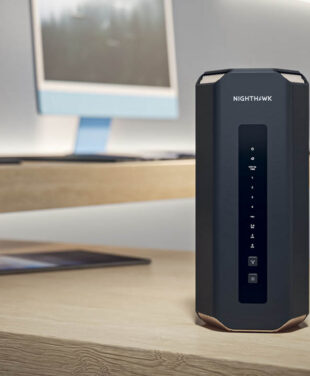
Frequent disconnects, weak coverage, or outdated software can be reasons to investigate your router. This checklist will help you decide whether to troubleshoot your existing setup or explore a new NETGEAR Nighthawk router or Orbi mesh system.
How Long Do Routers Last?
A router can remain useful for several years. Around four to five years is a practical checkpoint to review its condition, software support, and performance. Some routers may need replacing sooner, while others continue to meet their owners’ needs for longer.
How Often Should You Replace Your Router?
Base the decision on support and performance, not just the purchase date. Consider replacing a router that no longer receives security updates, has persistent hardware problems, or cannot meet your coverage and connection needs after troubleshooting.
How Do I Know If I Need a New Router?
Use this checklist to review your current setup:
- Check security support. Look up your exact model to see whether the manufacturer still provides security updates.
- Check connection reliability. Investigate repeated disconnects or unexpected restarts that continue after updating the router and checking cables and power.
- Check performance. If speeds remain disappointing near the router, compare wired and wireless results and rule out an internet-provider issue.
- Check coverage. If rooms remain difficult to connect after improving router placement, consider whether a mesh system would better suit your layout.
- Check household demand. If performance drops when several people stream, game, or join video calls, review both your router’s capabilities and your internet plan.
One slow device or a temporary outage does not automatically mean your router needs replacing. Start with updates, placement, and basic troubleshooting before deciding to upgrade.
Choosing a NETGEAR Nighthawk Router or Orbi Mesh System
If your checklist points toward an upgrade, start with your home’s layout and the areas where you need reliable WiFi.
NETGEAR Nighthawk Routers: WiFi from One Central Location
Consider a Nighthawk router when one well-positioned router can cover the rooms you use. Compare models based on your internet plan, connected devices, Ethernet connections, and security features.
Explore Nighthawk Routers
NETGEAR Orbi Mesh Systems: Coverage Across Multiple Areas
Consider an Orbi mesh system when your home needs WiFi from more than one location. A router and compatible satellites distribute coverage across rooms or floors. Placement and the connection between units still affect the results.
Explore Orbi Whole-Home Mesh Systems
How to Replace Your Router
- Confirm that your new equipment works with your internet service and whether you must keep your provider’s gateway.
- Follow the model’s setup instructions to connect the router to the required modem or gateway.
- Use the Nighthawk or Orbi app where supported to complete setup and check for firmware updates.
- Set your WiFi name and password, reconnect your devices, and test the rooms where you need coverage.
Reusing your previous WiFi name and password may help compatible devices reconnect. Some devices may still need attention, particularly if security settings have changed.
Is Your Router Keeping Up with Your Home?
More Devices and Simultaneous Use
Streaming, gaming, video calls, and smart-home devices all share your network. If problems appear when several devices are active, review your router’s capabilities alongside your internet plan. A newer router may help with local network performance, but it cannot increase the speed supplied by your provider.
More Rooms to Cover
A new home office, extra floor, or distant room can create coverage needs your current setup was not designed to handle. Try a central, open router location first. If one router still cannot reach the areas you use, consider a mesh system with multiple WiFi access points.
Should You Replace Your ISP’s Router?
Check your provider’s equipment requirements before purchasing a replacement. Some services require you to retain their gateway, even when adding your own router or mesh system. If you pay a separate equipment fee, compare the cost of ownership with that fee and confirm which charges would actually be removed.
Why Router Security Updates Matter
Firmware is the software that runs your router. Updates can fix security weaknesses, resolve bugs, and improve reliability. A router may still connect to the internet after support ends, but continued operation does not mean it is receiving new security fixes.
Check the support information for your exact model. Install available updates and enable automatic updates where supported. If the manufacturer no longer provides security updates, plan a replacement.
Security Features to Check Before Upgrading
- Firmware updates: Check how updates are delivered and review the manufacturer’s support information.
- WiFi encryption: Review the supported security settings, including WPA3 where compatible with your devices.
- Router protection: Check which built-in protections are available on the specific model.
- Separate networks: Look for guest or smart-home network options if you want to separate different types of devices.
Use strong, unique passwords for router administration and WiFi access. For more guidance, read How to Make Your Router More Secure.
What Does NETGEAR Armor Add?
NETGEAR Armor is an optional security subscription available on compatible routers. It adds protection against online threats alongside your router’s built-in security features. Available features and any included trial depend on the product and plan.
Armor does not replace firmware updates or extend a router’s manufacturer support period. Keep your router updated whether or not you subscribe.
Explore NETGEAR Armor
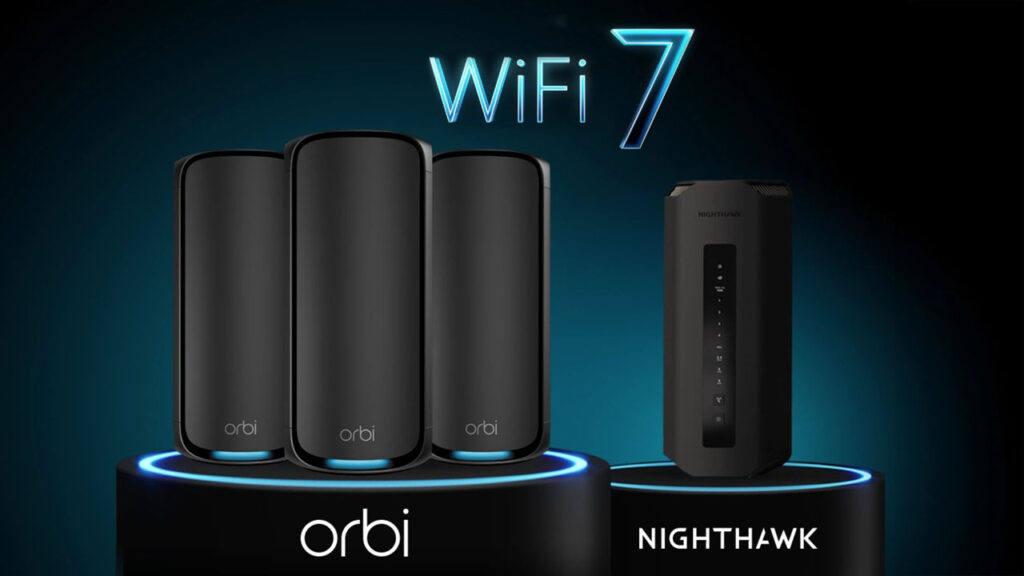
What to Compare Before Choosing a NETGEAR Router
Compare the specific models that fit your home and internet plan. Look at coverage, Ethernet ports, supported WiFi features, security-update information, and setup options.
Check which protections are included and which services require a subscription. Choose the features you need today while allowing room for additional devices or changes to your home.
Ready to Replace Your Router?
If your router is still supported and meets your needs, keep it updated and review its performance periodically. If it no longer receives security updates or continues to fall short after troubleshooting, compare a NETGEAR Nighthawk router or Orbi mesh system for your next setup.
Router Replacement FAQs
How long do routers last?
Routers can remain useful for several years. Around four to five years is a
useful checkpoint to review performance and security support, rather than a
fixed expiration date. Replace sooner if support ends or persistent problems
cannot be resolved. Check your model’s status using NETGEAR’s
End of Service information.
How do I know if I need a new router?
Check for discontinued security updates, repeated disconnects or restarts,
and coverage or performance that no longer meets your needs. Rule out
provider outages, poor placement, cable problems, and device-specific issues
before deciding to replace it. Review these
key considerations for upgrading your router
to help decide your next step.
Do routers go bad?
Yes. Router hardware can develop faults, and software support can end even
while the device still works. Recurring problems are a reason to
troubleshoot, but they do not prove that the router is the cause. Find your
model’s manuals and troubleshooting documentation in the
NETGEAR Download Center.
Will a new router make my internet faster?
A new router may improve performance if your current router is the bottleneck.
It cannot raise the speed supplied by your internet plan. Results also depend
on your devices, placement, interference, and connection type. Compare
NETGEAR Nighthawk routers
for a single-router setup or
Orbi mesh systems
if you need coverage from multiple locations.
Can I replace my internet provider’s router?
It depends on your provider and service. Some allow compatible customer-owned
equipment, while others require their gateway to remain connected. Confirm
the requirements and any setup changes before buying a replacement. Use
NETGEAR’s
router upgrade guide
to help compare your options once you know your provider’s requirements.