When Should You Perform a Factory Reset?
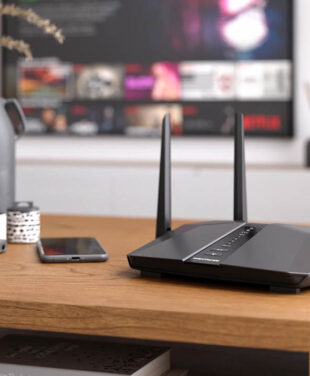
Sometimes, performing a factory reset on your legacy WiFi router can help resolve persistent connection issues or restore default settings, like your router password. It’s a proactive way to troubleshoot and get your network back on track.
However, if your older router is struggling to keep up with modern devices and faster internet demands, upgrading to a NETGEAR WiFi 7 router might be the best solution. With cutting-edge speeds and features, it’s a leap forward for homes and businesses looking to stay ahead in today’s connected world.
Factory Reset vs Router Upgrade
If your current WiFi internet home or office setup is close to five years old, it could be slowing down compared to WiFi 6E or WiFi 7-compatible modem router systems. You will need to choose between a factory reset or an upgrade to future-proofed WiFi. Don’t forget that after a factory reset, you’ll need to get the latest router firmware updates.
- 1. Poor Connection SpeedsA factory reset may solve connection speed issues across your WiFi network. Your network may be overloaded with high-data-rate activities such as multi-player computer games, video streaming services, virtual reality, augmented reality, and real-time data-hungry WiFi applications. After a reset all devices will need to reconnect to the network, and if you’ve changed your password they’ll need to manually log back in.
- 2. No WiFi Network ConnectionOften a factory reset or (or simply a reboot) may be all that’s needed to restore a strong and stable WiFi network connection. The reset may also help if your internet connection was turned off or unplugged by mistake during setup or relocation of your NETGEAR router, modem, or another WiFi device.
- 3. Can’t Handle the Network DemandsWiFi development during the last 30 years has been transformative. The latest WiFi 6/6E and WiFi 7 systems from NETGEAR are future-proofed for the Metaverse and beyond. If your router is close to five years old and is struggling to keep up with WiFi network demands, it could be time for a NETGEAR upgrade, such as an Orbi WiFi 7 Whole-Home Mesh system.
- 4. When Troubleshooting Gets Too TroublesomeYou may be dealing with persistent network issues that standard troubleshooting isn’t resolving. A factory reset can help you start afresh with resetting all personalized settings for your username, password, WiFi network name, IP address, and security. Your entire WiFi network can be refreshed. Don’t forget to reactivate important bonus services such as NETGEAR Armor Security and Smart Parental Controls after a factory reset.
- 5. When Selling or Donating a RouterSometimes it’s simply time for a router upgrade. This is a perfect time to perform a factory Reset your router before packing it up to make room for Next Generation WiFi 7.
Simple Factory Reset Procedure for Refreshing Networking settings
Resetting a NETGEAR router is as easy as following the prompts.
Follow our guide below to perform a factory reset:
- Verify the router’s power light is on.
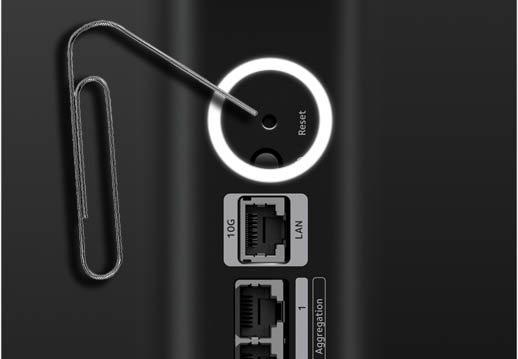
- Locate the Restore Factory Settings or Reset Button on the back of the router.
- Insert a paper clip or similar object into the small hole. A reset button allows you to press and hold the clip in place for only seven seconds to perform a factory reset of a NETGEAR router.
- Release the Restore Factory Settings or Reset button and allow the router to reset.
- When the factory reset of your NETGEAR Router is complete, log in with the default username login credentials and then set your personal login username and password preferences.
- Download the latest router firmware to improve the security and reliability of your router.
Additional WiFi Factory Reset Tips
Tech-savvy Internet users stay in control of their digital environment with a straightforward factory reset that simultaneously troubleshoots the entire network.
Remember to:
Backup Settings: Before performing a factory reset, consider writing down your router settings and defaults if you plan to restore them later.
Firmware Updates: Reset protocols can mean that firmware updates are required for the system. Check for any available firmware updates and program uploads/downloads after the factory reset.
Resetting vs Factory Reset: A factory reset restores all the router settings to the default, just as the device was from the factory and out of the box. A hard factory reset can alleviate WiFi and Ethernet cable connection problems, but try rebooting the system first.
Rebooting Your NETGEAR Router: Sometimes a full factory reset isn’t needed. You can try a quick reboot to solve many issues. To reboot your router – Unplug your router and modem, wait 30 seconds, then plug in the modem, followed by the router. Rebooting a router simply restarts the router without affecting its settings. It will take a minute or two for the router to be fully up and running after a reset.
Hardware Issues: If after a factory reset and reboot you still can’t connect to the WiFi network, you could have a hardware issue, such as a damaged Ethernet cable port or adapter. In some instances it’s time to replace the router with a new one. Be sure to visit NETGEAR Support to research Warranty & support information.
Factory reset on Your NETGEAR WiFi Extender
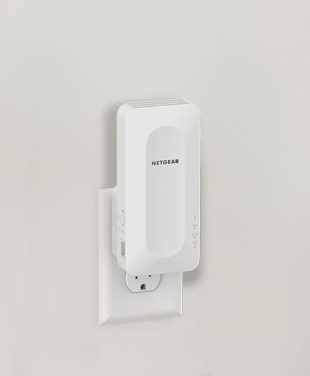
NETGEAR has been leading the way with the latest WiFi technology for decades, including the latest WiFi Extenders and WiFi 7 whole-home mesh systems. It’s straightforward to undertake a factory reset on a NETGEAR WiFi Extender. Simply insert a inserted paperclip into the reset hole and hold it down for at least 10 seconds.
Router Factory Reset FAQs
How do I factory reset a NETGEAR router?
A factory reset restores your router to its out-of-box default settings. Confirm the router is powered on, find the recessed Restore Factory Settings or Reset button on the back, then use a paper clip (or similar tool) to press and hold it, release it, and wait for the router to restart. After it comes back up, you’ll need to log in and set up your WiFi and admin settings again.
How long do I hold the Reset button to factory reset a NETGEAR router?
Hold the Restore Factory Settings or Reset button for about 7 seconds, then release. Some NETGEAR guidance for certain models (including Nighthawk examples) calls for at least 10 seconds, so if your first attempt doesn’t trigger the reset, try a longer hold time.
What does a factory reset erase on a NETGEAR router?
A factory reset deletes your personalized settings and restores defaults. That includes your router admin login settings, WiFi network name (SSID), WiFi password, and other custom configuration changes you’ve made.
What’s the difference between rebooting and factory resetting a router?
A reboot restarts your router without changing any of your saved settings. A factory reset wipes your custom settings and returns the router to default configuration, which means you’ll have to reconnect devices and reconfigure your network afterward.
What should I do right after a factory reset?
After a factory reset, set your admin credentials and WiFi network name/password again, then reconnect your devices. Next, check for and install the latest router firmware available for your model to improve security and reliability. If you use services like NETGEAR Armor or Smart Parental Controls, plan to reactivate them after the reset.
How can I reset a NETGEAR router admin password without factory resetting?
You can use NETGEAR’s password recovery flow from the router login page. In a browser, go to routerlogin.net, select Cancel on the login prompt, then follow the prompts to enter the router’s serial number and complete the security questions to set a new password.